
No of visitors who read this post: 292
Category: MS SQL Server
Type: Question
Author: Paulc
No votes yet

I got this error message (see below) while setting up Microsoft SQL Server Compact 3.5 on our SQL Server.  I tried reinstalling it but the same error happened.  I checked the internet for some resolutions but I couldn’t find anyone who had the same situation as I was. 

Anyway, can someone please help me resolve the issue?  Need it very badly.  Thanks in advance.

SQL Server Setup failure.

SQL  Server Setup has  encountered the following error:

MsGetProducetInfo failed to retrieve ProductVersion for package with Product Code=’{2AFFFDD7-ED85-4A90-8C52-5DA9EBDC9B8F}’. Error code:1608..

Comment viewing options

Select your preferred way to display the comments and click "Save settings" to activate your changes.

#

Hello Paulc,

I recommend you to install SQL Server 2010. It is an express edition which includes SP2. The installation should also include WPI or Microsoft Web platform or files that are directly downloaded through microsoft. When using Microsoft Web platform Installer, it may require to install other component which are listed below:

  • Native Client
  • Shared management Objects
  • Management Studio
  • SQL Server
  • CLR Types

You don't have to worry about the components because they can help you solve your problem. It may take some time to download and install but it will be worth it, I hope it might help.Good luck!

-Zorian

# (Solution Accepted)

Hi,

I will tell you how to solve this problem. Please follow the Instruction that I have given below.

Note: Read very carefully before you do anything.

1.       Then Click Start > in the search box, type regedit and press Enter.

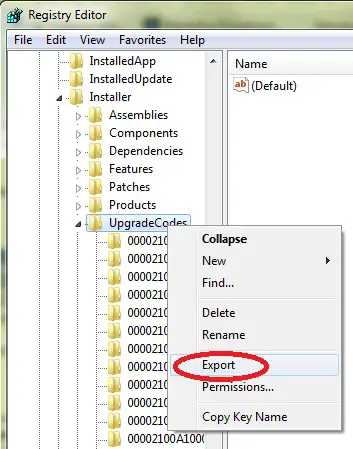
2.       Now Registry Editor appears. Locate the UpgradeCodes folder. You can find this folder by taking this path. HKEY_CLASSES_ROOT\Installer\UpgradeCodes

3.       Right click the UpgradeCodes folder and select Export.

4.       Save the registry folder in your hard drive.

5.       Then you have to rename the UpgradeCodes to something else. Let’s rename it to UpgradeCodesOLD. So you can easily remember it.

6.       Now install Microsoft SQL Server. You should install this manually. This is very important. If you don’t know how to install this manually you can click below link to follow instructions given in the site.

http://kb.sagesoftwareonline.com/app/answers/detail/a_id/26994/session/L2F2LzEvdGltZS8xMzU1OTA0MDA4L3NpZC83OTYzUjZlbA%3D%3D

7.       Now again go to the registry editor and import the registry folder which you have exported before.

Now you can check the problem.

Hope this will solve your problem.