
No of visitors who read this post: 303
Category: Networking
Type: Question
Author: Anonymous
No votes yet

I have an error message saying limited or no connectivity. I had called Netgear to assist me on this but I got hung up on several times.

Please assist me on this.

Comment viewing options

Select your preferred way to display the comments and click "Save settings" to activate your changes.

# (Solution Accepted)

Hi,
 
This error message normally appears due to the following reasons:
 
1.  You are far from your router/access point.
2. Your computer could not get an IP address from the router/access point.
3. The password or security key or pass phrase you have on the computer is incorrect.
 
To correct this, I highly recommend for you to do the following:
 
1. Check the wireless settings of your router/access point.
2. This can be done through logging into the Netgear's User Interface by:
        (a) Open a web browser like Internet Explorer, Mozilla Firefox, etc.
        (b) On the address bar type 192.168.1.1 or routerlogin.com
        (c) A user name and password will be asked, for user name type "admin". For password type the word "password".
3. Click on the wireless settings under set up. There you will see the wireless settings of your router.
 
Delete your preferred networks and then try to connect again using the right security code.
 
How to delete preferred networks in Windows XP?
 
1. Click Start button.
2. Click Connect to
3. Click Show all Connections
4. Right Click on Wireless Network Connection.
5. Click on Properties.
6. Click on Wireless Networks tab.
7. Scroll down to preferred networks
8. Highlight you network and click on the remove button
9. Click OK on all dialog boxes.
 
 
- Heather

# (Solution Accepted)

Hello,

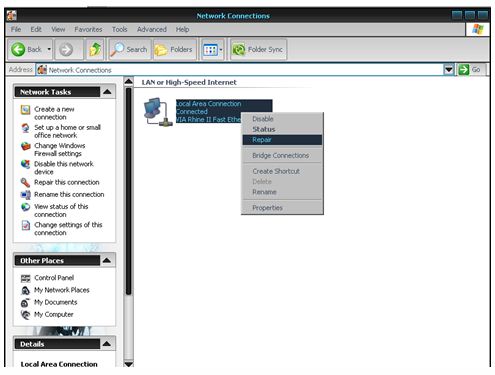
The error normally appear when you are about to connect to the internet after reformatting the computer. Reformat will delete previous files and settings of your computer  and it takes a few minutes to reestablish the connection. To fix the problem please follow these simple instructions.

1.   Go to Control panel.

2.   Click Network and internet connections.

3.    Find Network connections and click.

4.    On the LAN/High speed internet right click your Local Area Connection and select repair.

After clicking the repair, Windows will automatically reestablish your internet connection and it will take a few minutes to complete.

Note***

               Repair will not guarantee a 100% internet connection recovery in one setting. Sometimes it needs more than 3 - 5 retries to reestablish back the connection.

# (Solution Accepted)

There are two possible reasons if you are having this issue. It could be that your wireless network password is incorrect, or the wireless zero configuration is disabled. If your wireless wep key or password is correct, you have to click start, run, and enter services.msc and click OK. Find and click Wireless Zero Configuration, then click 'Start the service'. Click start again, control panel, network connections, then right click on Wireless Network Connection and hit properties. Click the Wireless Networks tab and put a check on the box for 'Use windows to configure my wireless' then click OK. That should resolve your problem.