Laptop will lock when I press L on my keyboard

I think you got a problem with the windows key on the keyboard. You can have many shortcuts by using the Windows key. Well for your knowledge I want to mention that, Windows key + L is the shortcut for locking the machine.
Windows key + R for Run dialog box.
Windows key + E for Windows explorer.
And there are so many shortcuts to do many functions.
Check your keyboard whether a Windows key is pressed.
Try to clean your keyboard using defined cleaning methods. As this is a laptop there are specific tools to clean laptop keyboards. But it's better to give it to some expert to service your laptop for maintenance and cleaning. I think your problem is sensor of the Windows key is always touched into the surface.
So now let me tell you about some facts about the Windows key. It is also known as the Super key, Logo key, Meta key, Win key, Start key or flag.
This key becomes a standard key on computer keyboards, from the release of the Win 95 by Microsoft. Same as the Windows key, you can get another key like the Apple key for Mac keyboards.
The windows key is placed between the CTRL and ALT on the left side and, ALT and menu key on the right side. (You will find the menu key is an also an important key in the keyboard).
Pressing and releasing the Windows key by itself opens the Start Menu.
-
Win+B select the 1st icon in the Notification Area.
-
Win+D show desktop.
-
Win+E Windows Explorer opens.
-
Win+F Windows Search opens.
-
Win+F1 Windows Help open.
-
Win+L lock desktop or switch users.
-
Win+M all window minimizes.
-
Win+ Shift+M restore windows which were minimized with Win+M.
-
Win+R Run dialog box open.
-
Win+Pause or Win+Break System Properties open.
So now just press each of the keys above without the Windows key and you can clearly identify whether the Windows key is the real issue here.
There is another solution for this problem.
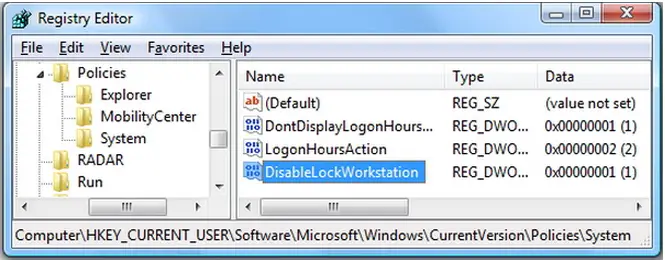
If you cannot mend it on the keyboard, you can disable the windows key from the registry.
You can go to this site and download the registry entry file and install it on your machine.
Click here or else you can do this manually.
Follow the below steps to disable the Windows key.
Click Start.
Go to Run.
Type regedt32 and then click OK.
Follow the below path in registry editor.
HKEY_LOCAL_ MACHINESystemCurrentControlSetControl folder, and then click on the Keyboard Layout folder.
Click on the Edit menu.
Click Add Value.
Type of Scancode Map.
Click REG_BINARY as the Data Type and then OK.
Type 00000000000000000300000000005BE000005CE000000000 in the Data field and then OK.
Close Registry Editor and restart the machine.
So here after your Windows key is disabled.
To enable it, follow the below steps:
Click Start.
Click Run.
Type regedt32 and then OK.
Go again the above mentioned path.
Right-click on the Scancode Map registry entry and then Delete it.
Close Registry Editor and then restart the machine.
For your information, I want to tell you about another thing.
Onscreen keyboard. A virtual Keyboard displays on the screen.
Click Start.
Go to All Programs.
Click Accessories.
Go to Accessibility and there you see On-Screen keyboard.
So now you can press keys from your mouse pointer. I'm sure that this utility also be very much valuable for you.