Asked By
jessie k
40 points
N/A
Posted on - 07/08/2011

Greetings friends,
It is a great evening but with some hurdles for everyone and for me also as I am having a problem in running Internet Explorer on my computer.
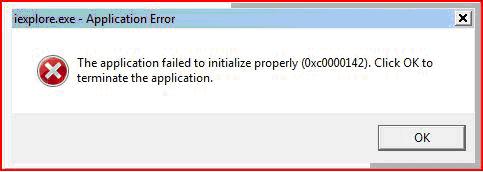
The application failed to initialize properly (0xc0000142). Click OK to terminate the application.
I had Internet Explorer 7.0 on my computer running perfectly. So, I thought to upgrade it, and I installed its version 8.0. The installation got completed but after the installation when the computer restarted, and the startup screen appeared and I open the explorer new version I received this error message that the application failed to initialize.
Can anyone tell me why this error appears as I re-installed the explorer and tried again but got same error response from the computer?
IE Explorer Application Initializing Error
You can have this method.
You need to visit Windows Update and make it sure you have all updates needed for the operation. Adjustments for ActiveX as to be set. Proceed to Internet Options/Security Internet and hit default level and click Ok. Press the tab of Custom Level. From the section of Active X set the option of Download Signed Controls to Prompt while the other one option the Download Unsigned Controls to Disable. Unmark then the Initialize option.
Please download and install these programs:
-
For spyware blaster: http:www.javacoolsoftware.com/spywareb
-
For spyware guard: http:www.widerssecurity.net/spywaregu
-
For IE/Spyad: http:netfiles.uiuc.edu/ehowes/www/res
-
For Bugoff: http:tools.zerosrealm.com/bugoff.zip
Install then the Spyware Detection and removal programs.
Then next the Spoofstick, which helps the user detect fake website. Next set again the system restore for Windows XP only.
Now check your problem.
Answered By
Janine08
5 points
N/A
#121625
IE Explorer Application Initializing Error
You may use the System File Checker (SFC.exe) tool to solve this problem. SFC.exe itself will locate and replace the file which is causing the error. Here are the steps that need to be followed:
1. Open command prompt with administrator privileges. Go to Start >Accessories; right-click on Command Prompt and select the Run as administrator option from the pop-up menu.
Note: if the system asks for an admin password or a confirmation, enter the password or click Allow, to proceed.
2. In the command prompt console type the following command and press Enter:
scf /scannow
This command will scan all the protected OS files and automatically replace the ones with incorrect versions with their correct Microsoft versions.