Asked By
James Mayer
0 points
N/A
Posted on - 08/01/2012

I prepare many reports using Microsoft word. When preparing I use header footer option. But my question is the same header footer is appearing on all pages. Can’t I use different header/ footer in several pages?
How to use different header/footer in Microsoft word?
Yes you can have a different header / footer in Microsoft word. However, in order to have a different header / footer you have to break the entire document into sections according to the place that you want to change it. I will explain it through an example.
I will take a word sheet with four pages and break it into 2 sections. That means page 1 and 2 are one section. Page 2& 3 is another section.
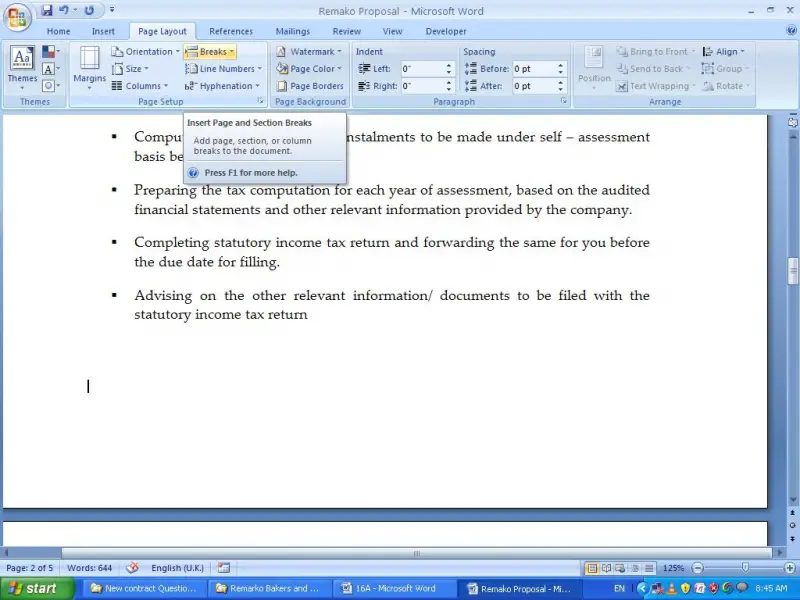
In order to break sections, first click on the 2nd Page, click on the Page Layout tab and click on the Breaks.
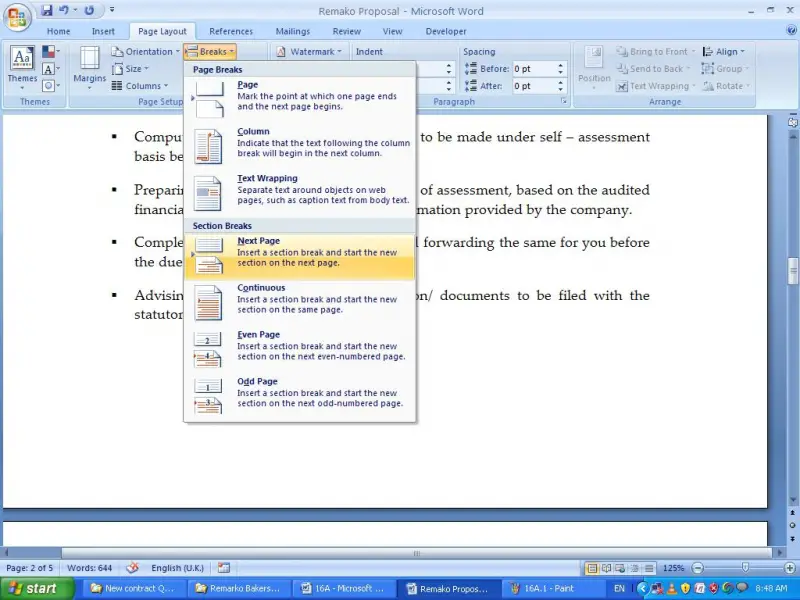
Now click on the next page in the section breaks.
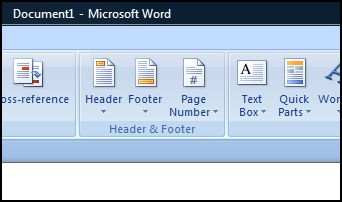
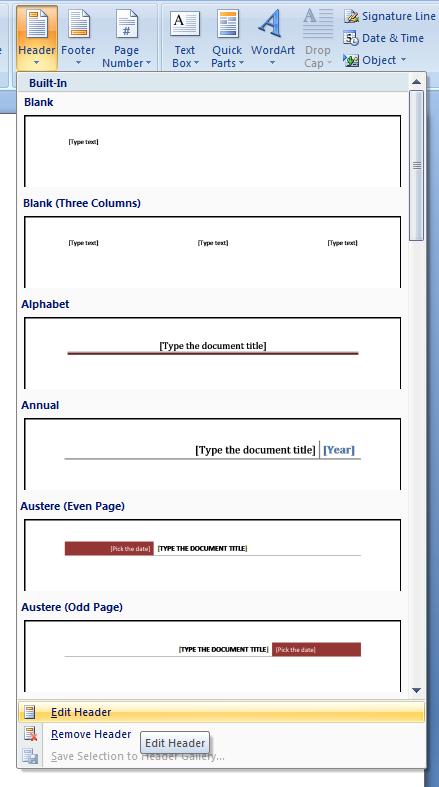
Now click on the first page, click on the insert tab, click on the Header and click on the edit header.
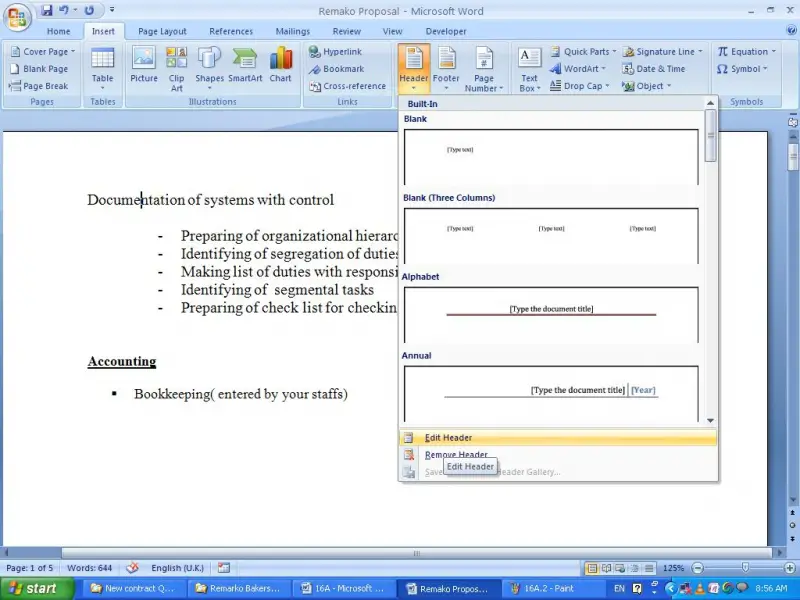
Type the first header that you want. I will type it as “header 1”.
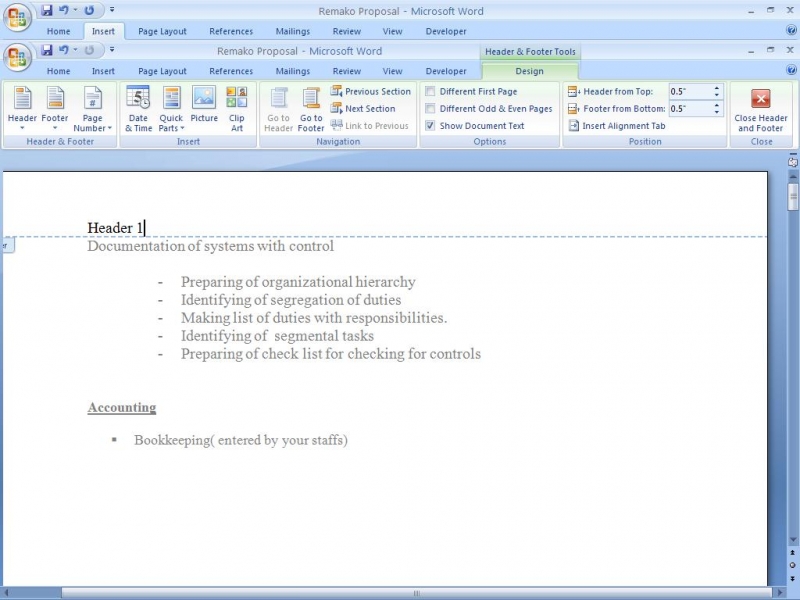
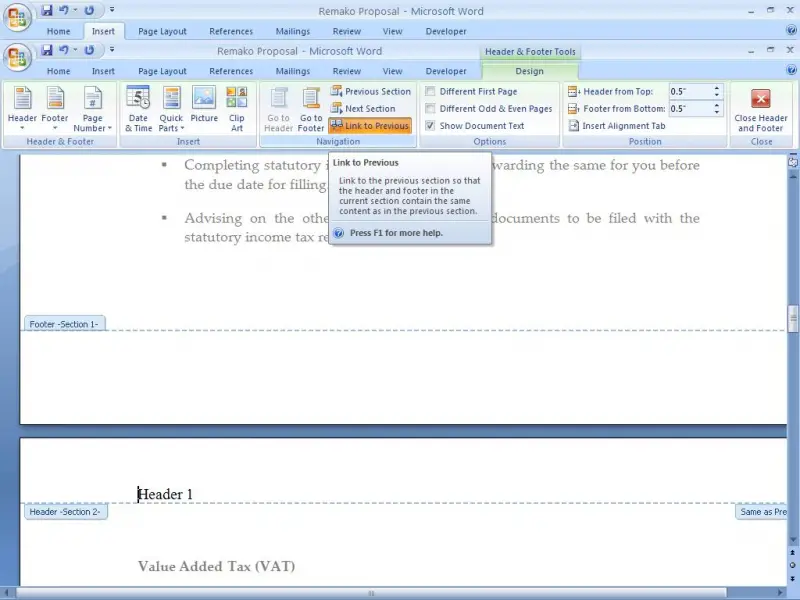
Now click on the third page and in the same way go to the edit header.
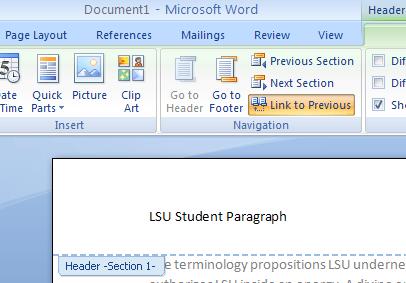
Then click on the “Link to previous” in order to disable the link with the previous section.
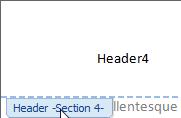
Then edit the header as “Header 2”.
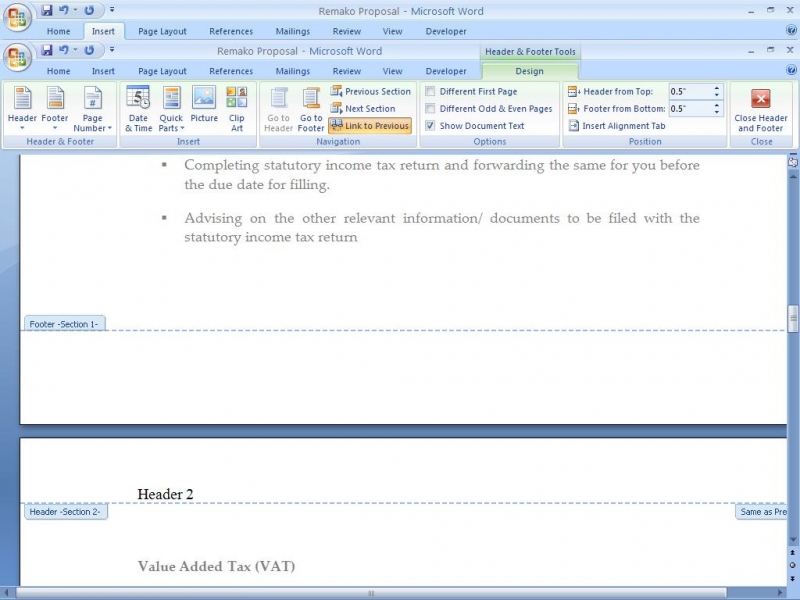
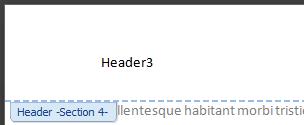
Now you can see that there are 2 headers in page 2 & 3.
How to use different header/footer in Microsoft word?
Hi,
You can actually do that. A different header or footer.
I will explain how to add and remove headers and footer.
On the View Menu of your Word Program, Click Header and Footer. After that you can notice that you cannot edit the body of the document and you are presented an area above and below the page. In that Area, you can edit the header and footer of the documents.
Header and Footer can be change according to the following categories:
1. You can have Headers and Footers for the First page only
2. You can have a different Headers and Footers on an Odd and Even Pages.
3. You can also have different headers and footers for sections of a Document.
For more information on the details of how to perform it. Please refer to https://support.microsoft.com/en-us
https://support.office.com/en-us/article/Add-a-header-or-footer-b87ee4df-abc1-41f8-995b-b39f6d99c7ed?ui=en-US&rs=en-001&ad=US
Loida Arcel
Answered By
hina22
0 points
N/A
#135399