
I used Microsoft Excel 2000 but now I installed Microsoft Excel 2007. So everything looks new and I am trying to do work with Pivot Table like before but it did not display a list of formula. So I need to know how and what I have to choose to display the list of formulas for making Pivot Table report?
How can I display the list of formula for making PivotTable report?
For you to display the list of formulas that are used in the PivotTable report you have to:
-
Click the Pivot Table report.
-
Look for “Tools” tab, and click on it, there will be a drop-down
-
Look for “formulas”, click on it.
-
Click “list formulas”
If this doesn’t work, then you have to make your own formula first, here’s how:
There are two ways to make a formula:
-
Whether you want a calculated field (when your going to use a data from another field in your formula) or a calculated item within the field (when you want your formula to use data from one or more specific items, ex. In the field “Week”, the items could be “Sunday”, “Monday”, and so on.)
In a calculated field:
-
Click the Pivot Table report.
-
On the Upper Left part of the screen, on the Option tab, look for Tools group an hover your cursor on it, there will be a drop-down and click Formulas, and then click Calculated Field.
-
Type the name for the field in the Name Box.
-
In the Formula box, enter the formula for the field.
To use the data from another field in the formula, click the field in the Fields box, and then click Insert Field. For example, to calculate a 15% commission on each value in the Sales field, you could enter = Sales * 15%.
-
Click Add.
For calculated item:
-
You have to click Ungroup, in the Group, on the Option tab, if the items in the field are grouped.
-
Click the field where you want to add the calculated item.
-
On the Options tab, in the Tools group, click Formulas, and then click Calculated Item.
-
Type a name for the calculated item in the Name box
-
And, in the Formula box, enter the formula for the item.
To use the data from an item in the formula, click the item in the Items list, and then click Insert Item (the item must be from the same field as the calculated item).
-
Click Add.
-
If you ungrouped items in step 1, regroup them if you want.
How can I display the list of formula for making PivotTable report?
In Microsoft Excel 2007 arrangement of the functions and formulas are slightly different to Excel 2000.
Now the “Pivot table” is not display under formula tab instead it is shown in the insert tab. The first option is the “Pivot table” in the “Tables” section. Please see the image below.
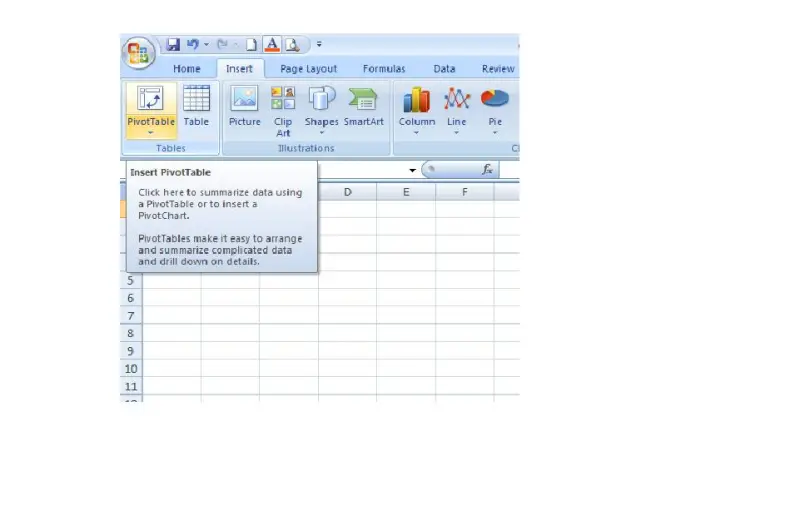
Click on the pivot table then you will be able to see the next window as in Excel 2000.
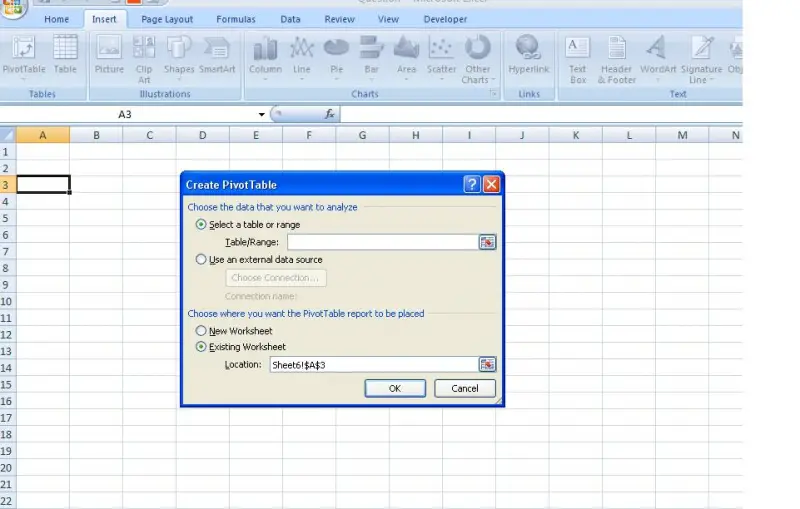
However, if you click ok (after selecting the data source) it will appear the Pivot table Field list which is different to Excel 2000.
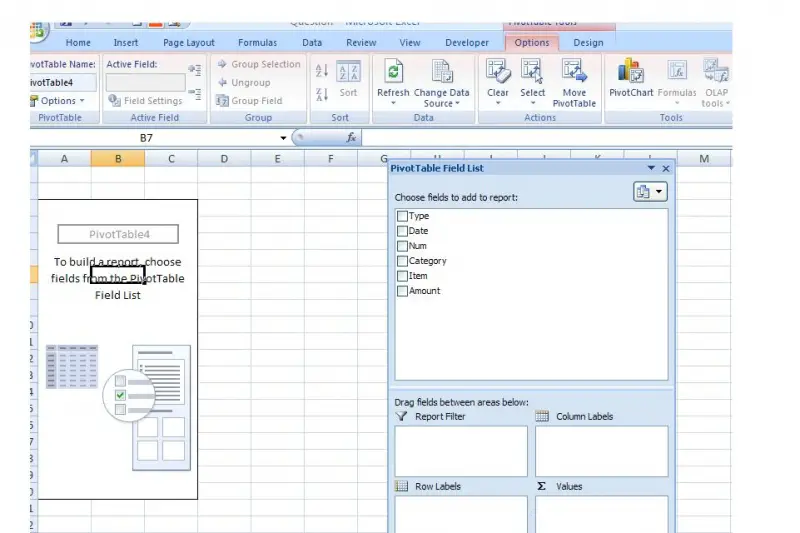
Now you have to drag and put the field that you want to Column labels, Row Labels and Values as required and make the pivot table.