I need a little help here. I am trying to use Airplay mirroring to stream a game I'm playing to my HD TV through my apple TV box. Without any success. I thought that's what Airplay mirroring did any solutions or directions.
How do you use AirPlay Mirroring in OS X Mountain Lion
Greetings,
1. For starters to be able to use Airplay you first need an Apple TV, 2nd or 3rd generation, with v5.0 or later. (Make sure all updates for your Apple TV console have been downloaded. Go to General > Updates in the Apple TV menu.)
2. You need a compatible Mac device to send a signal to the Apple TV. (Apple says basically any models that were made 2011 or newer support Airplay, because they have the processors that support it. Also, iPhone 4S and iPad 2 or later, with at least iOS5, are supported. Earlier models are not.)
3. Make sure your device and the Apple TV are on the same network. WiFi or Ethernet.
4. If your Mac supports Airplay and your Apple TV is on the same network you will see a menu button on your Mac.
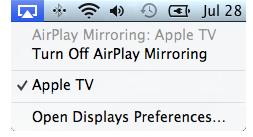
5. Check Apple TV. Apple TV icon is blue when Airplay is on.
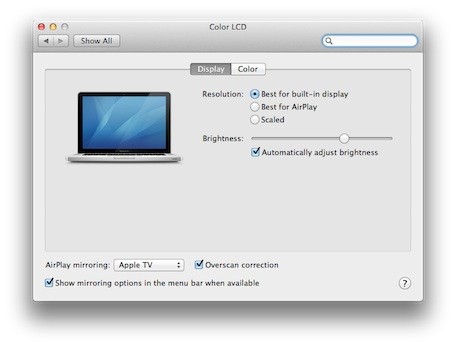
6. If that didn't work try System Preferences>Displays. Select Airplay Mirroring and click Apple TV.
(If Airplay mirroring is not in the Displays window you cannot use Airplay.)
7. Choose a resolution setting.
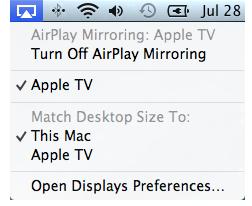
Match Desktop Size To:
-
This Mac- makes the desktop screen fit to your Apple TV without changing ratio or resolution
-
Apple TV- stretches the resolution to fit a standard HDTV with 16:9 ratio formatting. It will look slightly different.
8. If it is still not working check that your computer and your Apple TV have been updated.
9. Another reason it might not be working is a weak WiFi signal, giving you spotty reception and/or no reception at all.
10. Also make sure you have Bluetooth turned off on your device. Click Bluetooth icon at the top of your screen near the Airplay Icon and disable it.
11. Last but not least make sure there are no Microwaves, refrigerators, ovens, baby monitors, or 2.4 GHz cordless phone systems going on in your house. I worked at Comcast, these things create a lot of interference if they are between your wireless router and your end user device on a wireless network.
Good Luck!
How do you use AirPlay Mirroring in OS X Mountain Lion
Dear Rechard,
Please note these steps to enjoy Airplay mirroring the most on Mountain Lion.
Minimum requirements you should have are –
1. WiFi or Ethernet connection,
2. Enhance your picture qualities of HDTV,
3. Click on Apple TV option for AirPlay Mirroring menu item,
4. Before manually setting the OS, select the option “Best for Build-in Display”.
5. You shall also select options like “Automatically adjust brightness, “Apple TV” from AirPlay Mirroring, “Overscan Correction” and “Show Mirroring options in the menu bar when available”
(Please see the image below).
Enjoy your AirPlay Mirroring!