Asked By
stepanjohn
0 points
N/A
Posted on - 11/05/2011

How do I justify text in Microsoft Word or Open Office? If it is possible how can I do it?
How can I justify any text in MS word?
Hello Stepanjohn,
Please take a look at the image below for the solution of your problem.
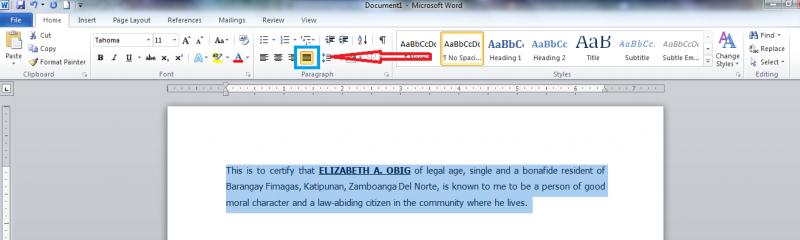
Step by step:
1. Highlight your text as shown on the image.
2. Click "Justify" button, the one in a blue box and with red arrow, as shown on the image.
3. You're done.
For all the Office Applications, Still, do the same procedure.
Hope this help.
Thank you.
Welvin
How can I justify any text in MS word?
It’s not very difficult to justify any texts in Microsoft Word or Open Office. With the tabs and functions on this word processing software, editing will be a breeze.
If you want to horizontally justify the text in Microsoft Word, you can do this by highlighting the text you wish to justify. After this click on the Align Text options on top, on the Paragraph section. You can choose to align your texts on the left, right, center or justify. This is the option you need to choose.
Vertically justifying your texts is easy as well.
You can do this when you have the document open in Microsoft Word. Click on the File option and then choose Page Setup. On the Page Setup, click on the Layout tab. Under the vertical alignment option, hover over it and choose between, up, bottom or center alignment, depending on which one you want to use. If you want this alignment to affect the whole document, uncheck the Apply to Selected Text option.
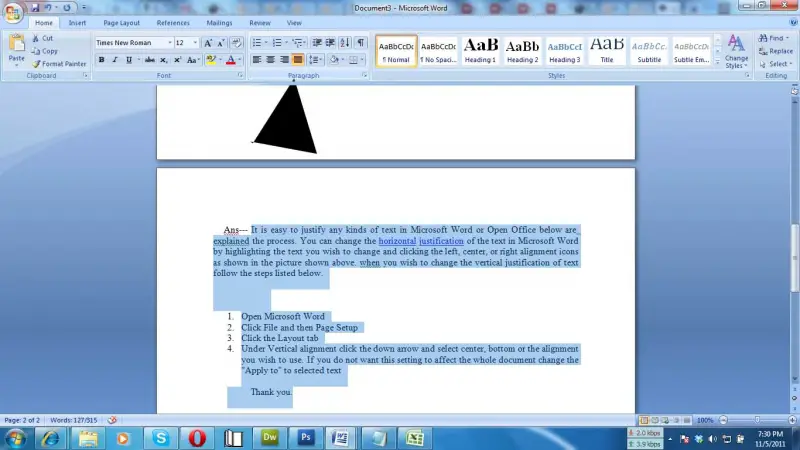
-
Open Microsoft Word.
-
Click File and then Page Setup.
-
Click the Layout tab.
-
Under Vertical alignment click the down arrow and select center, bottom or the alignment you wish to use. If you do not want this setting to affect the whole document change the "Apply to" to selected text.
Thank you.
Answered By
lee hung
75 points
N/A
#99763
How can I justify any text in MS word?
Hello Stepanjohn,
You can justify your text in a word document using two methods. One is a shortcut and the other a long method. Let us see how to go about them:
The SHORTCUT:
-
Highlight all the text that you want to justify and then in the menu bar, look for the text justification icon (it looks like horizontal bars which are of equal length) and click on it.
-
You text will be automatically justified.
The LONG METHOD:
-
Highlight the text you want to justify.
-
Then go to the word menu and then on file click on page set up.
-
In the window that will come up, choose justified and click OK.
Hope this helps.
Regards,
Lee Hung
Answered By
Ayswaria
0 points
N/A
#99765
How can I justify any text in MS word?
1. First of all, you want to set your page and its margins.
In the file menu, select page set up.
In the page setup, a dialog box click on margin tab.
Select the margins you want in left, right, top and bottom.
Then select the paper tab.
Select the paper size you want.
Then select the layout Tab.
Select the justified in the vertical alignment.
Click OK
start typing.
2. In the open word, window select the text already typed and select the justify icon from the formatting tool bar.