
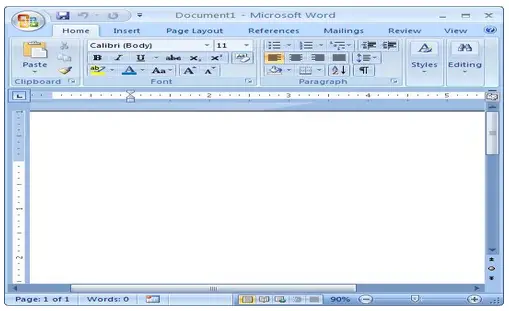
My MS Word has just been upgraded to version 2007 from 2003. The layout of the menu and commands take some getting used to.
I used to be able to customize the buttons that appear on the top menu of MS Word 2003, depending on what I use frequently.
For example, Font commands. I use double strike through and small caps a lot in my documents and projects, so those are 2 buttons I would definitely need to get up there on the menu rather than having to do a 3- or 4-step procedure just to accomplish the font format.
I cannot seem to find a way to customize the command buttons in MS Word 2007. Can someone please show me how?
Answered By
Mathew.H
0 points
N/A
#82070
Customize menu buttons in MS Word 2007
For a new user it is a difficult task. But trust me it is quite easy to do. You can do it in a little time. Follow the given procedure:
1. Open MS Word
2. Go to Menu bar.
3. Now click on file.
4. In the menu click on settings
5. A new window will appear
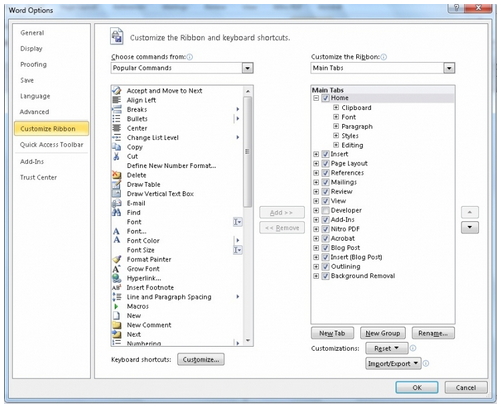
6. Click on customize ribbon and here you go
7. You can change anything in the toolbars you want
See how easy it is. For your convenience I have attached the image also. Remember follow the given procedure step by step and it's done.
Customize menu buttons in MS Word 2007
Hello Jeffandersen,
It is much easier for you to customize the menu buttons when using ms word 2007, it is just that you are new to it that you find it a little harder but with time you will get used to it. You just follow the following simple procedure when you want to customize your buttons in ms word 2007:
Just right click in the ms word menu bar and then choose customize quick access toolbar. The window like the one shown in the image below will open.

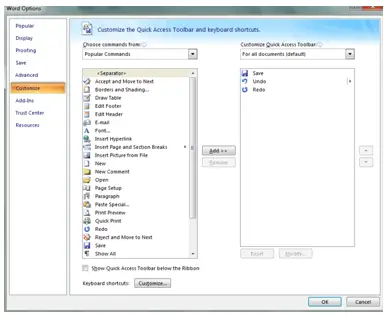
From the box click on customize and then choose the options you want from the list and add them to the quick access tool bar. When you are done click OK.
The selected options will be readily available in the quick access tool bar in the ms word menu for use.
__
Regards
Clair Charles