

Guide to install and configure Active Directory on Windows 2008 Server
An additional feature needs to be installed first to make Windows 2008 Server act as an Active Directory Domain Controller which is the – Active Directory Domain Service Role.

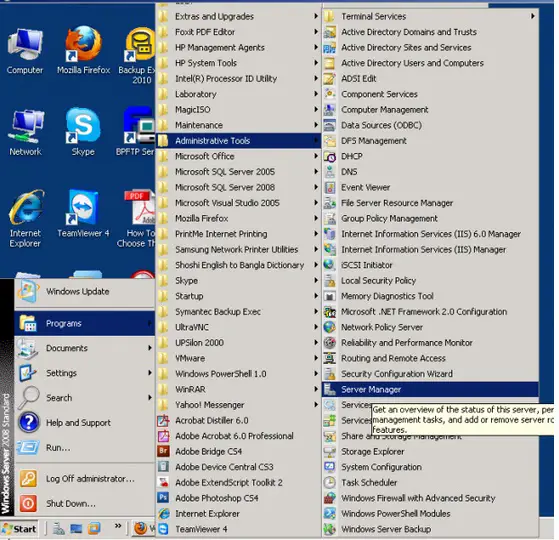
Click on Start – > Programs -> Administrative Tools -> Server Manager
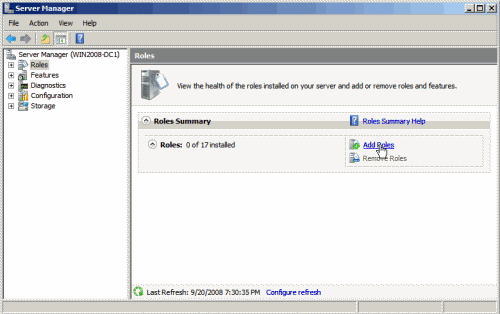
2. Now Select Roles from left pane then click on Add Roles link.
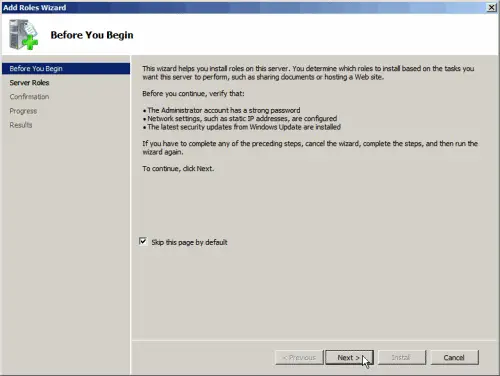
3. Go to Next.
4. Check on Active Directory Domain Services box, and click Next.
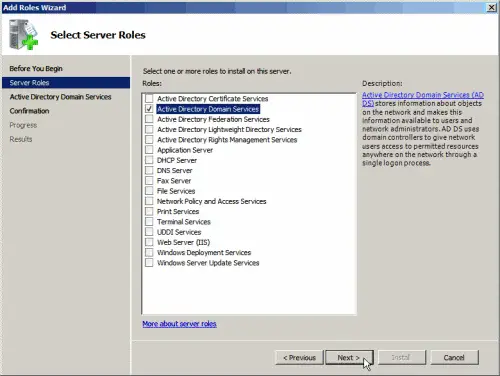
5. Go to Next.
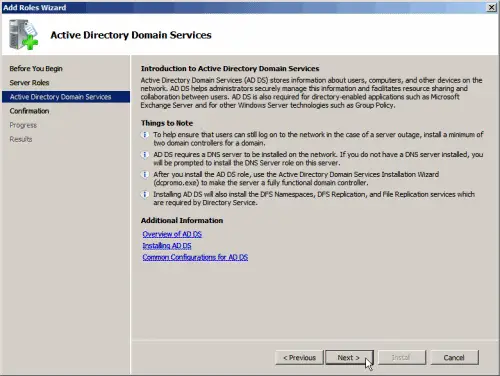
6. Hit Install.
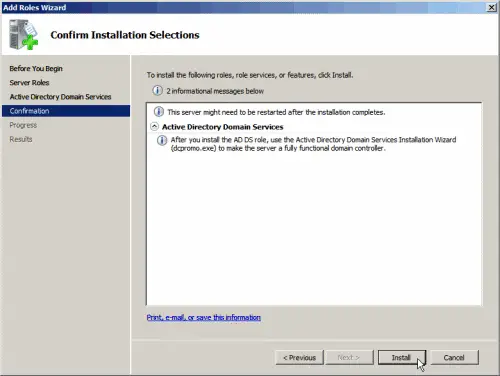
7. It will look like below while the role is being installed.

8. To finish click on Close.
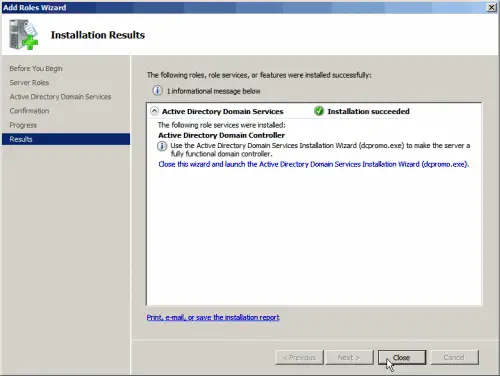
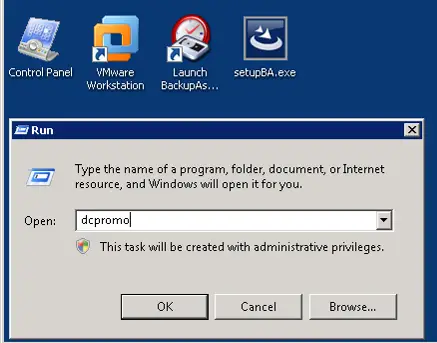
9. Open Run by pressing Windows Key and R together and type dcpromo in the Run dialog box and hit on OK.
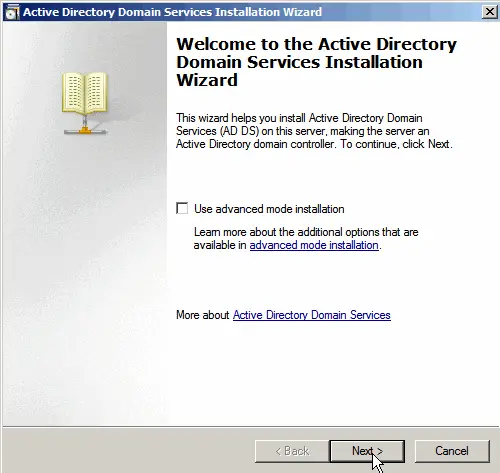
10. The Active Directory Domain Service wizard will open and then click Next.
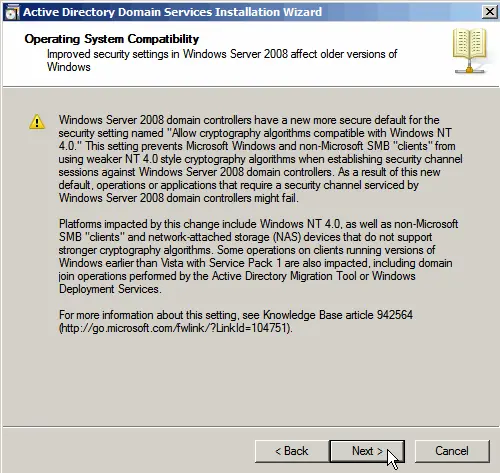
11. Proceed to Next.
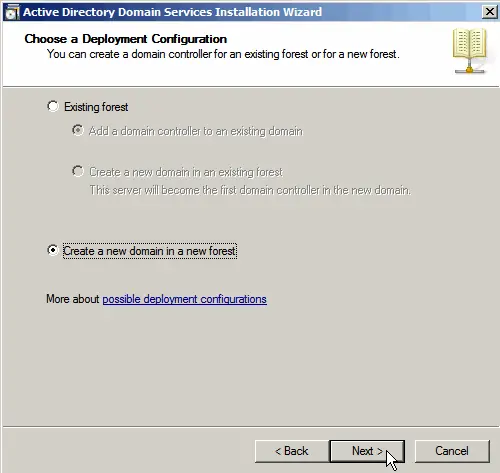
12. Select Create a new domain in a new forest and click Next.
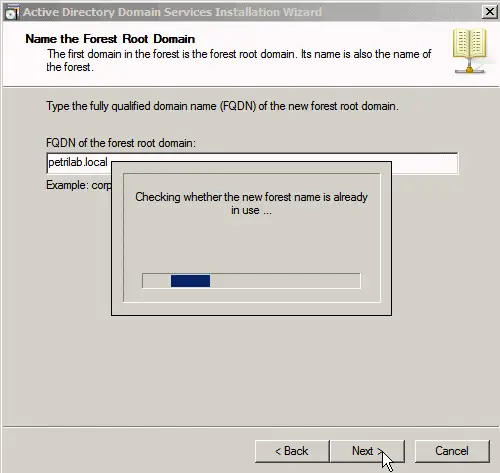
13. Input your desired FQDN (Fully Qualified Domain Name) and click Next.
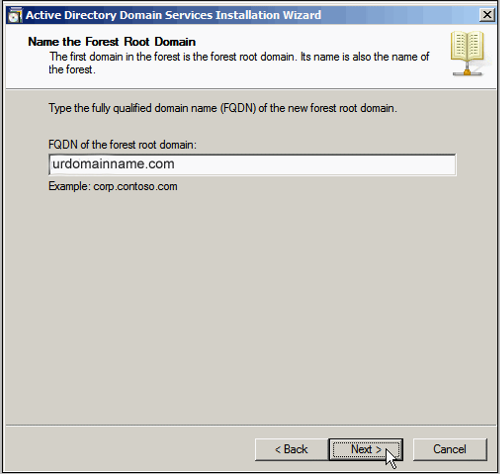
It will check the name you have entered whether it is existent in the LAN or not.
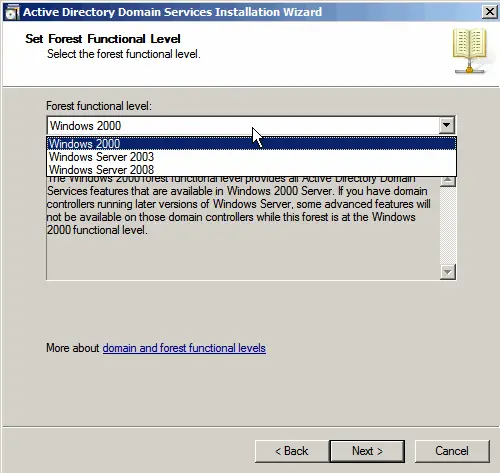
14. Choose your compatible forest level and click Next.
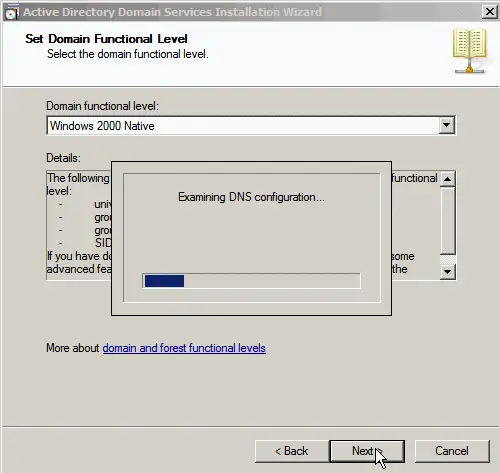
15. Select your desired domain functional level then Next.
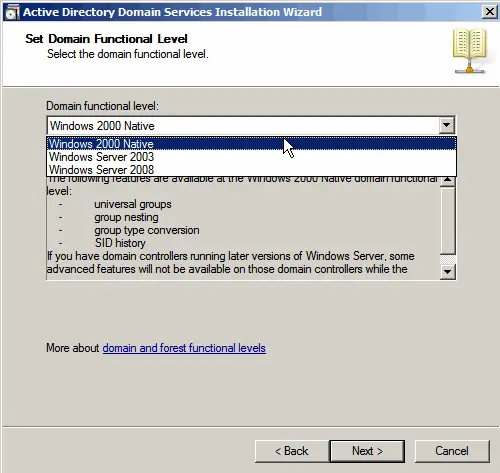
(If you choose Windows Server 2008 as forest function level, you don’t have to choose a domain function level.)
16. This will examine whether the DNS is configured correctly or not.
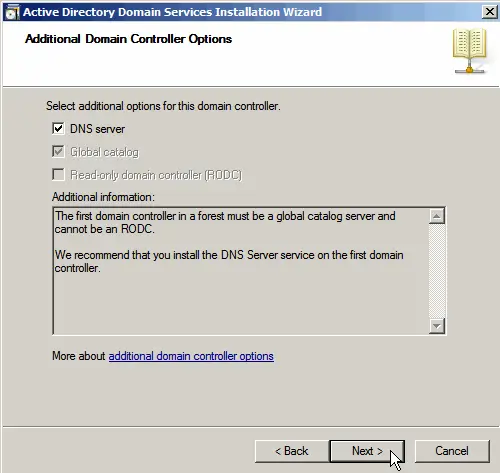
17. If there is no DNS configured then it will prompt you to automatically install DNS in the system. Also note that the first Domain Controller has to be the Global Catalog server.
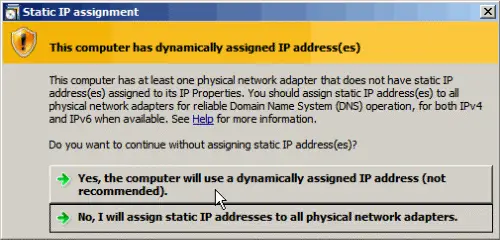
18. Due to IPv6, it will pop-up a message indicating that the server is detecting one or more dynamic IP address. If you don’t need IPv6 then just overlook the message and click No, I will assign IP addresses to all physical network adapters.
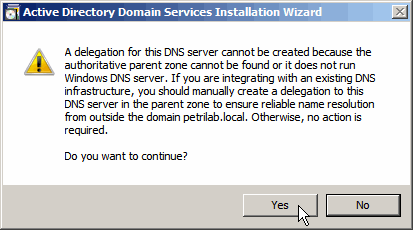
19. Next there may be a message about DNS delegation if the DNS is not configured, just click Yes.
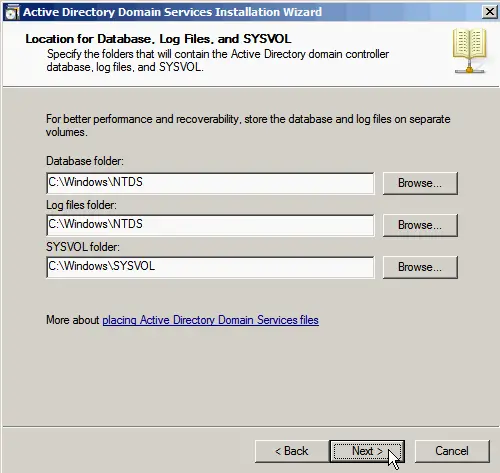
20. Choose your suitable location to store Active Directory database, log files and SYSVOL to achieve full performance. Then click Next.
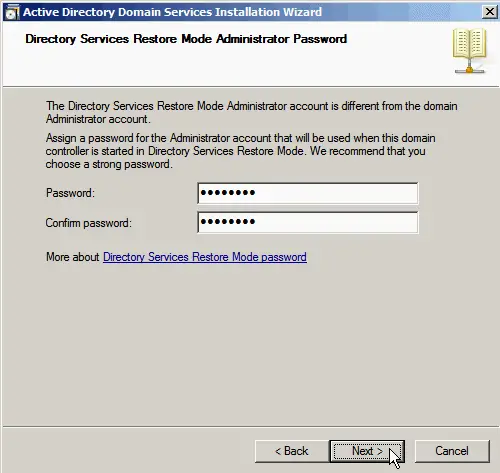
21. Give a strong password for AD (Active Directory) Recovery mode. This password is important and you may need it often in the future, so store it in a safe place. Click Next.
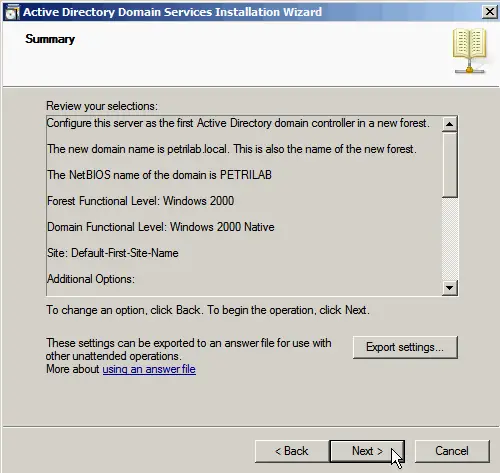
22. Click on Next.
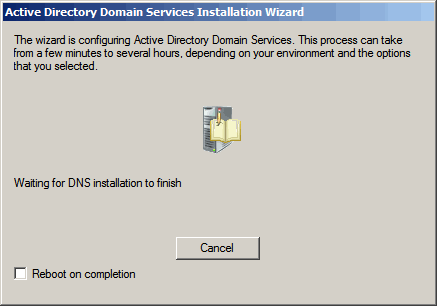
23. Now it will start building Active Directory domain.
24. Click on Finish.
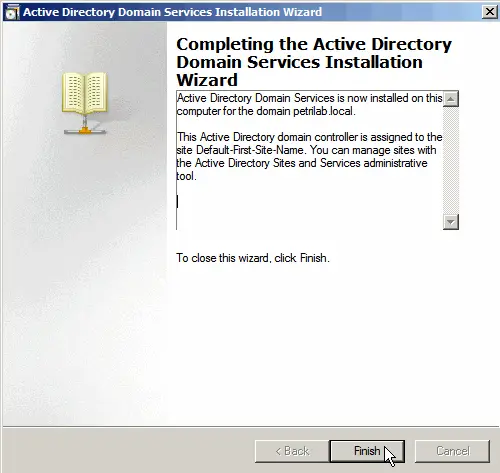
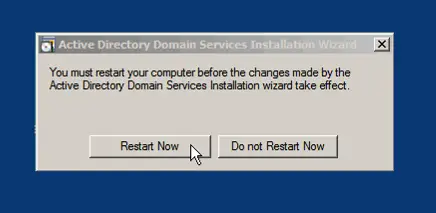
25. And then finally restart the Server.
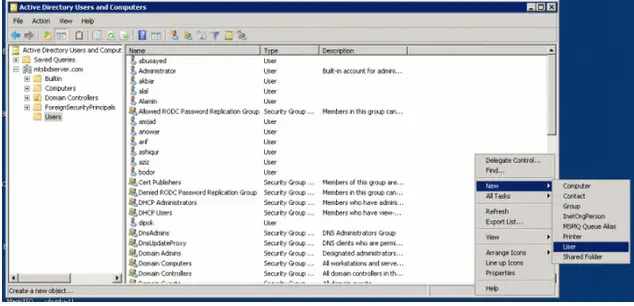
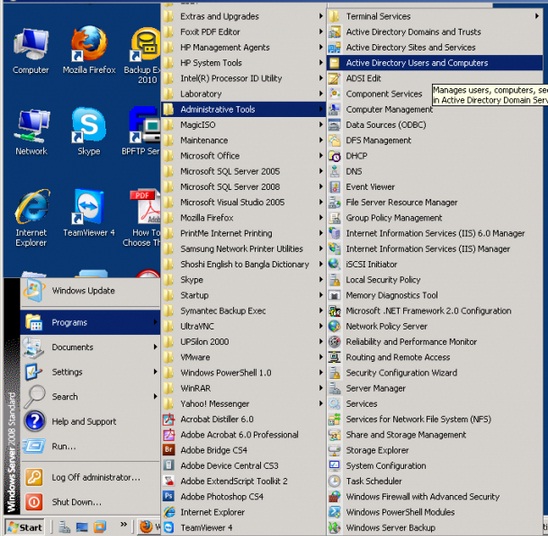
After restarting the server you can now create users from Active Directory Users and Computers.
Right click on the surface area on right pane, select New and then click on User.