

Safari vs. Internet Explorer
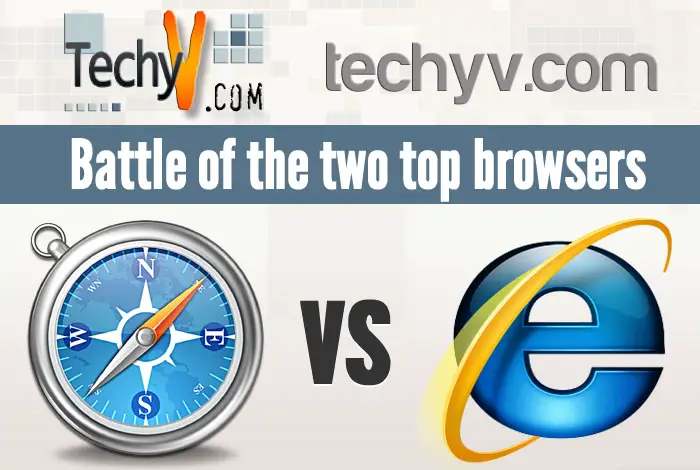
We are going to discuss the two most innovative browsers today, the Apple Safari and the most commonly used Internet Explorer. We will compare each one according to different criteria’s and see how smart and powerful these two browsers are.
| Sl No. | Criterion | Safari | IE (Internet Explorer) |
| 1 | Developer | Safari was developed by Apple for fast web browsing experience. | IE was developed by Microsoft for web browsing and can be used in most devices. |
| 2 | Speed | It is the fastest web browser ever. Loading time for web pages is significantly enhanced. It works fast with iPad 2; that is why Apple is really proud of it. | IE is also fast but when compared with Safari, it lags behind. Users are most satisfied with using Safari when loading web pages. |
| 3 | Keyboard Navigation | Due to Safari’s advanced keyboard navigation, now you don’t need a mouse to browse on the web, which is also one of the key features of iPad. | With IE you can also browse on the web with your iPad, but the loading process will take longer in comparison to Safari. |
| 4 | OS | It has an integrated OS X that is suitable for iPad. It does not require a mouse; it can perform tasks with touch gestures. | IE browser is also available for the iPad, but it does not have its integrated OS. |
| 5 | Web Technologies | Apple is now applying various new web technologies such as CSS Animation, HTML5, Media Caching, Ajax, Web-socket, Math ML, WOFF, JavaScript Support, Acid 3, SVG Support, Scriptable Plugins, LiveConnect Support, Error Reporting, Formatted XML Files, and many more. | IE is implementing JavaScript, Tracking Protection, Pinned Site Control for Site Owners, HTML5 Location, Repeat One Box Searches, Less-intrusive notifications and many more. |
| 6 | Privacy and Security | Safari provides for a structured security system for the iPad2. It is a new addition to iPad, and it is also in iPad2. Moreover, Apple makes sure that no viruses can attack their system. So, we can undoubtedly declare that Safari is much safer than any other browsers. | IE provides for its users a secure and private browsing experience through firewalls and antivirus software that is available on the world wide web for download. There are free software but users can also use the premium versions to enjoy the benefits of full version software. |
| 7 | Developer Resources | To develop the amazing features of Safari, its developers use iOS development tools, Web Inspector, Elements Pane to examine the Document Object Model (DOM), Cascading Style Sheets (CSS) rules, Elements Pane, Snippet Editor, Resources Pane, Network Pane, JavaScript Debugger, Scripts Sidebar, Timeline Pane, Audits Pane, Syntax Highlighting, HTML5 Extensions, Extension Menus, New Event Classes, Reader Extensions, Disable Caches and much more. | To develop IE, its developers mainly use HTML, CSS, XML, DOM, JavaScript, SVG etc. |
| 8 | Accessibility | Safari features VoiceOver Screen Reader, ARIA Support, Full Page Zoom, Closed Captions for HTML5 Video, Custom Style Sheets (CSS), Minimum Font Size with the help of Ajax, and JavaScript. Definitely, it is more efficient than the rest of the browsers such as Mozilla, Opera, and Google Chrome. | IE uses a framework that provides accessibility to the iPad. It also uses an operator interface for FTP. Pop-up blocking and tabbed browsing are one of the key elements and features in the process of accessibility. |
| 9 | Drawbacks | JavaScript menu options, drop down menu, hyperlinks, WebPlus X5 site do not work with Safari. | On the other hand, ‘image’ type of input, comment script etc. do not work in IE. |
| 10 | SSL Installation Process | SSL installation process on Safari browser:
|
To install SSL on IE browser:
|
| 11 | VPN Installation Process | At first log in to the VPN and then your authenticity will be verified. After that, you will have to click the install button. After the installation you will be connected with the network. | At first log in with your username and password. Click on the install button. Finally click on the start button to connect VPN. |